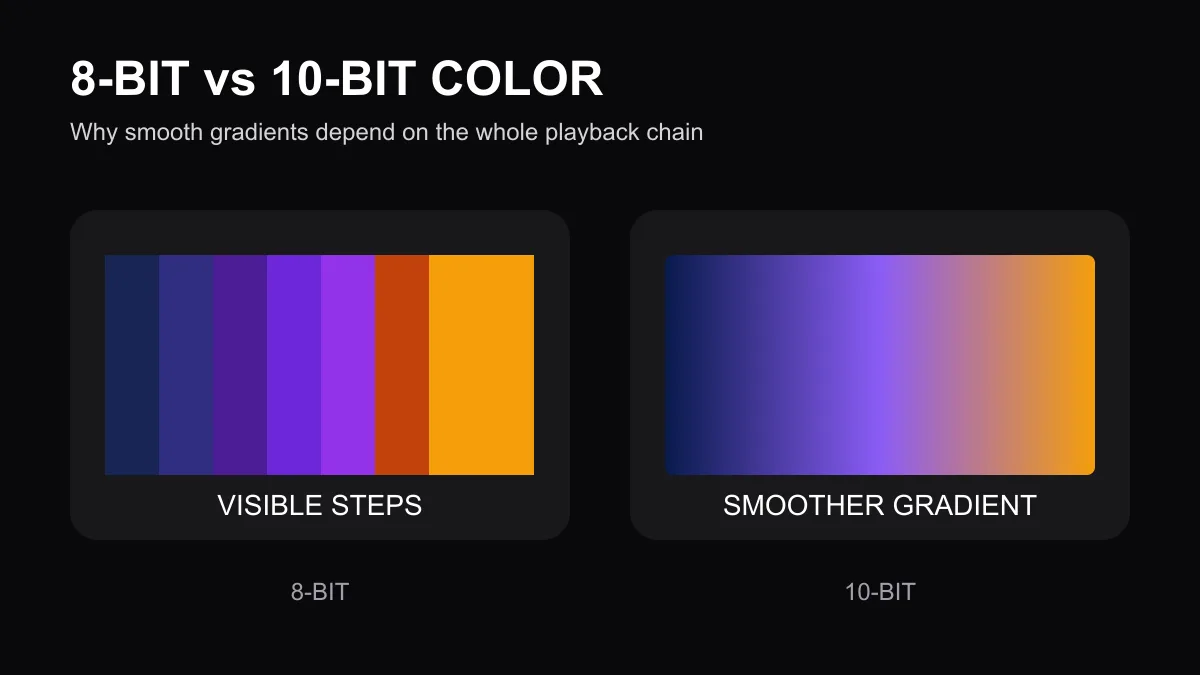
The practical difference between 8-bit and 10-bit color is the number of tonal steps available for each color channel. Ten-bit video can represent smoother gradients and is commonly part of an HDR workflow, but a 10-bit television setting cannot restore detail that was never present in the source.
What 8-bit and 10-bit color mean
Bit depth describes how finely brightness and color values can be divided. More available steps reduce the visible jumps between nearby shades. This is easiest to notice in skies, shadows, fog, studio backgrounds and animated gradients.
Bit depth is separate from 4K resolution. Resolution describes pixel count, while bit depth describes the range of values each pixel can represent. A video can be 4K and 8-bit, or lower resolution and 10-bit.
Why 10-bit color can look smoother
An 8-bit gradient may show distinct rings or bands when the source, compression and display reveal the gaps between shades. Ten-bit material provides more intermediate values, giving the encoder and display more room to produce a smooth transition.
That advantage depends on the complete chain:
- The original video must contain suitable color information
- The encoded stream must preserve it
- The player and operating system must output the correct format
- The HDMI connection must support the selected resolution, refresh rate and color mode
- The television must process and display the signal correctly
If one link converts the signal to a limited format, the result may not match the source.
How bit depth relates to HDR
HDR formats normally rely on greater precision than traditional 8-bit SDR because they cover a wider brightness and color range. Ten-bit support does not automatically mean a picture is HDR, and an HDR badge does not guarantee that every scene will look better.
The television also needs enough brightness, contrast and local control to reproduce the intended range. Read the 4K versus HDR guide before treating the terms as interchangeable.
Recognize color banding without guessing
Color banding appears as visible steps across an area that should change smoothly. It can come from the source, aggressive compression, a limited output setting, picture processing or the display panel.
Test more than one legitimate title and one built-in television app. If the same banding appears in every source and menu gradient, inspect the display settings. If it appears only in one video, the source or encode is more likely responsible.
Check the device and television settings
Confirm the output format
Open the streaming device’s display information and confirm the intended resolution, refresh rate, HDR mode and color format. Automatic output is usually the safest starting point. Forcing a format that the television or cable cannot handle can cause a blank screen, flicker or fallback.
Check the HDMI input mode
Some televisions require an enhanced HDMI input option for higher-bandwidth modes. Names vary by brand. Enable it only for the connected input and confirm the picture remains stable.
Avoid excessive processing
Strong contrast enhancement, noise reduction and artificial sharpening can make gradient defects more visible. Start with a neutral Movie, Cinema or Filmmaker-style preset and compare the same scene. The Smart TV picture-settings guide provides a controlled order.
Know what settings cannot fix
Changing an output menu from 8-bit to 10-bit cannot rebuild color detail removed during recording or compression. It also cannot fix buffering, low bitrate or a poor-quality source. Do not judge bit depth from sharpness alone.
If a supposedly high-resolution picture is soft or blocky, use the blurry 4K troubleshooting guide and the real 4K checklist.
Choose the stable option
Use the highest format that the source, device, cable and television support reliably. If 10-bit output causes dropouts, confirm firmware, input capability and cable quality before lowering other settings. Compare the same scene after every change.
Test picture quality on your actual television during the trial period before choosing a longer subscription plan.