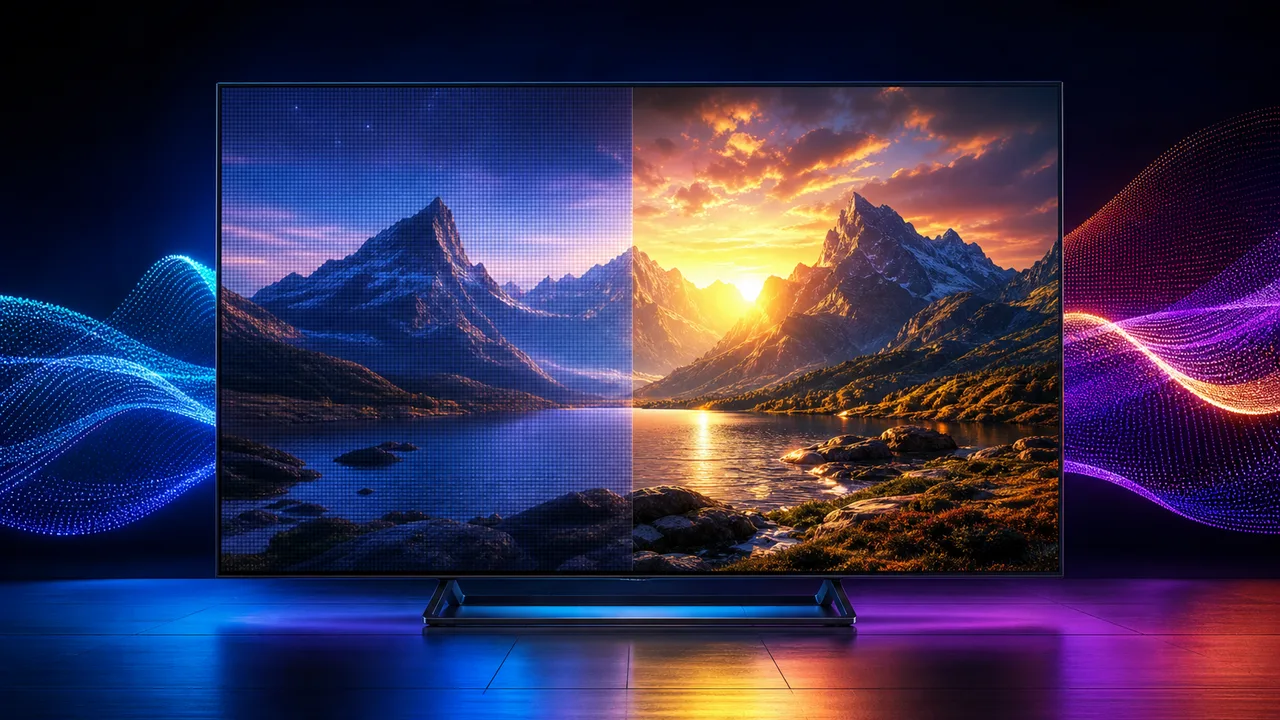
Start with the television’s Cinema, Movie or Filmmaker-style preset, reduce excessive sharpness, disable overscan and compare motion smoothing on versus off. Keep different settings for daytime sport and evening films if your television allows it.
The brightest showroom preset is rarely the most natural choice at home. Television brands use different names, so adjust with a real title rather than copying one universal list of numbers.
Choose a neutral starting preset
Cinema or Movie modes often avoid the exaggerated color and sharpening used by Vivid or Dynamic modes. A Filmmaker-style mode may reduce processing further. Choose the result that looks natural in your room.
Sharpness is not resolution
High sharpness can add bright outlines around objects and text. Lower it until edges look clean without appearing artificially etched. A genuine 4K source should not need heavy sharpening.
Motion settings depend on content
Motion interpolation can make fast sport look clearer to some viewers, while films may look unnaturally smooth. Save separate picture presets when possible and judge with your own eyes.
Understand motion smoothing and the soap opera effect
Motion smoothing is the general name for processing that creates extra frames between the frames in the source. Television brands may call it MotionFlow, TruMotion, Auto Motion Plus, Picture Clarity, Intelligent Frame Creation or another model-specific name.
The clearest motion-smoothing example is a film that suddenly looks like live studio video. Camera movement appears unusually fluid, but faces, lighting and movement can lose the familiar cinematic character. This is commonly called the soap opera effect. It does not mean the stream gained real detail or a higher native frame rate; the television estimated intermediate frames.
Strong interpolation can also create halos, doubled edges or momentary distortion around a fast player, ball or subtitle. Those artifacts are easiest to notice around moving objects against a detailed background.
Choose settings for films and series
Start with motion smoothing off or at its lowest level for films and scripted series. A Cinema, Movie or Filmmaker-style preset may already reduce it. Watch a slow camera pan and a scene with people moving across the frame. If normal judder bothers you, add only a small amount of processing and repeat the same scene.
Choose settings for live sport
Some viewers prefer modest motion processing for sport because it can make tracking a ball or player feel smoother. Use a low or custom setting first. If the television separates blur reduction from judder reduction, change one control at a time and watch for artifacts around score graphics and fast movement.
Test motion smoothing without guessing
Use the same legitimate source, scene and picture preset for every comparison. Do not compare one stream with another because bitrate, frame rate and production quality may differ. Toggle the setting, replay the same movement, and choose the result that looks stable without obvious artificial edges.
Picture settings cannot correct network interruptions or a low-quality source. If the image becomes blocky or pauses, use the blurry 4K troubleshooting guide before changing motion controls.
Check the full frame
Disable overscan or choose a setting such as Screen Fit, Just Scan or Original Size so the television does not crop the picture. Names differ by manufacturer.
Room light changes perception
A bright daytime room may need more backlight than a dark evening room. Avoid changing core color controls every day; adjust the panel light or use separate day and night presets.
Frequently asked questions
Should I use noise reduction?
It can help a visibly noisy low-quality source, but strong noise reduction may remove fine detail. Use a low setting or turn it off for clean high-resolution material.
Why does HDR look dark?
The television’s HDR capability, tone mapping, room light and title mastering all influence the result. Confirm HDR mode activates and compare in a dimmer environment.
Can settings fix buffering?
No. Picture processing changes the displayed image; buffering requires network, device or source diagnosis.
Read 4K versus HDR or send your model through the contact page.