Table of Contents
What is IPTV? Why Use IPTV on FireStick? Requirements Before Installation Enable Apps from Unknown Sources Install Downloader App Install IPTV Smarters Pro Set Up IPTV Smarters Alternative IPTV Apps How to Improve Streaming Performance Common Problems and Fixes FAQ
What is IPTV?
IPTV (Internet Protocol Television) delivers television channels and on-demand content through an internet connection instead of traditional cable or satellite services.
The Amazon FireStick turns your TV into a streaming hub, and IPTV apps unlock live TV, sports, movies, and series instantly.
Why Use IPTV on FireStick?
- Simple installation process
- Portable and affordable hardware
- Supports thousands of streaming apps
- HD and 4K playback support
- User-friendly interface
Pro Tip: Use at least 25 Mbps for HD and 50 Mbps for 4K streaming.
Requirements Before Installation
- FireStick device
- Stable internet connection
- Amazon account
- IPTV subscription
- M3U or Xtream Codes
- Downloader app
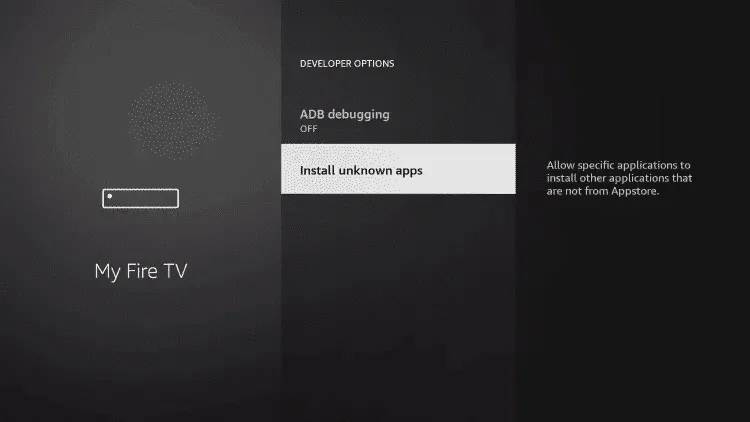
Step 1: Enable Unknown Sources
- Go to Settings
- Select My Fire TV
- Open Developer Options
- Enable Install Unknown Apps
- Allow Downloader
Step 2: Install Downloader
- Open Search
- Type Downloader
- Install it
- Launch app
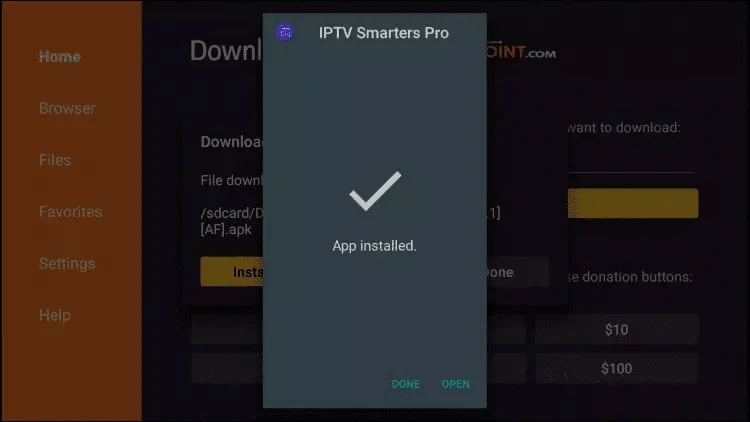
Step 3: Install IPTV App
Use IPTV Smarters Pro or any trusted IPTV player.
Open Downloader → Enter APK link
Premium Code (optional): 832082 or xhd-uk.online/p.apk
Install → Launch IPTV player
Step 4: Configure IPTV
Xtream Codes
- Enter username
- Password
- Server URL
M3U Playlist
- Paste M3U URL
- Save
- Load channels
Enjoy Streaming 🎬
Your IPTV setup is now ready on FireStick.
Alternative IPTV Apps
TiviMate, XCIPTV, OTT Navigator, and more IPTV players are also available.
How to Improve Streaming Performance
- Use 5GHz Wi-Fi
- Restart FireStick regularly
- Clear cache
- Close background apps
Common Problems and Fixes
Most issues come from internet speed or incorrect IPTV credentials.